

Filtering
Overview
Use the filters to narrow your search results down to find exactly what you need. The more you filter, the more focused your search results will be. This section explains each filter and how to maximize the use of flexible filters.
Filtering Under the Resource Category
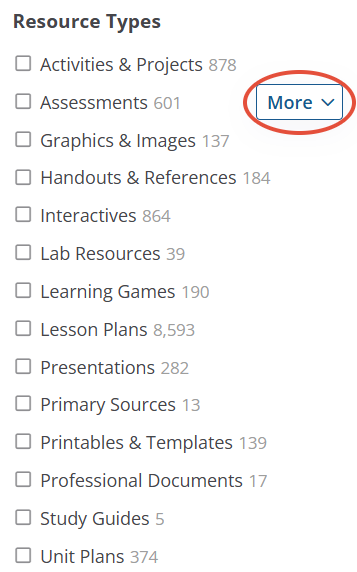
- Resource Types: Select one or more resource types you would like to see in your results. Click 'More' to expand specific resource type options.
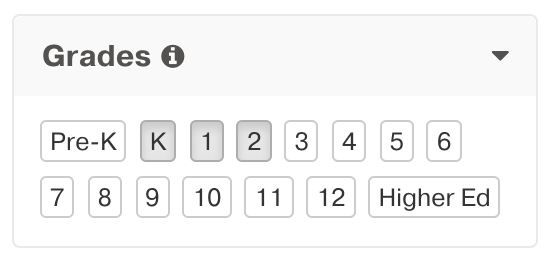
2. Grades: Select grades to find resources narrowed by grade level. Selecting more than one will result in more resource results.
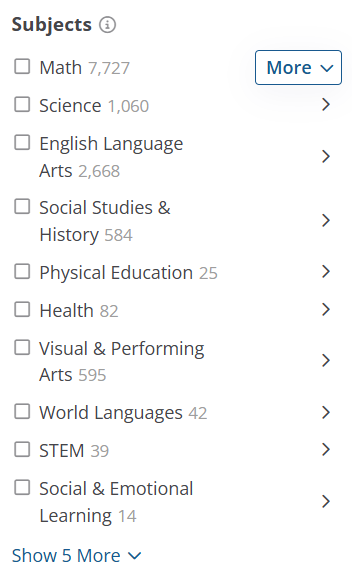
3. Subjects: Select one or more subjects you are teaching. Click More to drop down specific subject options.
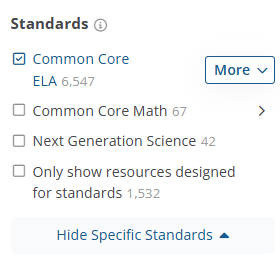
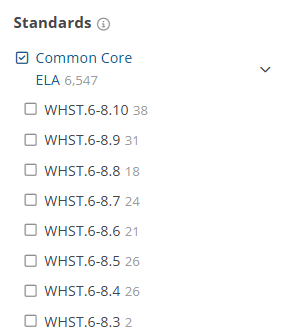
4. Standards:
- In order to search by standard, you will need to select one or more grades.
- Select one or more standard sets to find resources aligned to those standards.
- To get more specific standard alignments, make sure you select a grade first from above. Then, click "Expand Specific Standards” and the “More” button to the right of each standard set.
- Select the standard(s) you are looking for to see resources under that specific standard.
 |  |
Filtering Under the Media Category
The Media category is where you can find great videos to show in the classroom or add to your lesson! You will notice that there are a couple of additional filters on the Media category and that some filters carry over from the ones you may have selected in the Resource category and there are some that don’t carry over, such as any Resource Type or Included Material you may have selected.

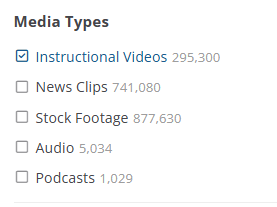
- Media Types: This filter will help you narrow down what type of video you are searching for to add to your lesson plan.
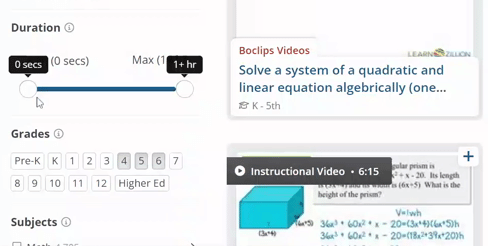
2. Media Length: With this filter, you can choose how long or how short of videos you want to come up in your search.
Filtering Under the Collection Category
Looking for a ready-to-go curriculum set or a lesson, click on the Collections category, and you will find already created Collections to save to your My Content. Under this category you will also find that some of the filters you selected initially under the Resource or the Media category don’t carry over.

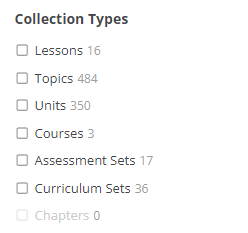
- Collection Types: We have pre-built a few different types of Collections for our members. All the Collections that we have built are designed to either be used for classroom instruction, assign to your students or help inspire and get you started on customizing your own Collections for your students.Note: After selecting all your filters, you will find what you have selected at the very top, nested under all the resource categories. To remove a selected filter, simply click the "x" on the filter or to remove all of them, click on Clear All.

Still need help? Submit a request.