

Navigating and Managing Your Content
Overview
Get to know the lay of the land in your personal resource manager. In this article, we will walk through the key sections of your Curriculum Manager and show you how to manage your collections.
My Content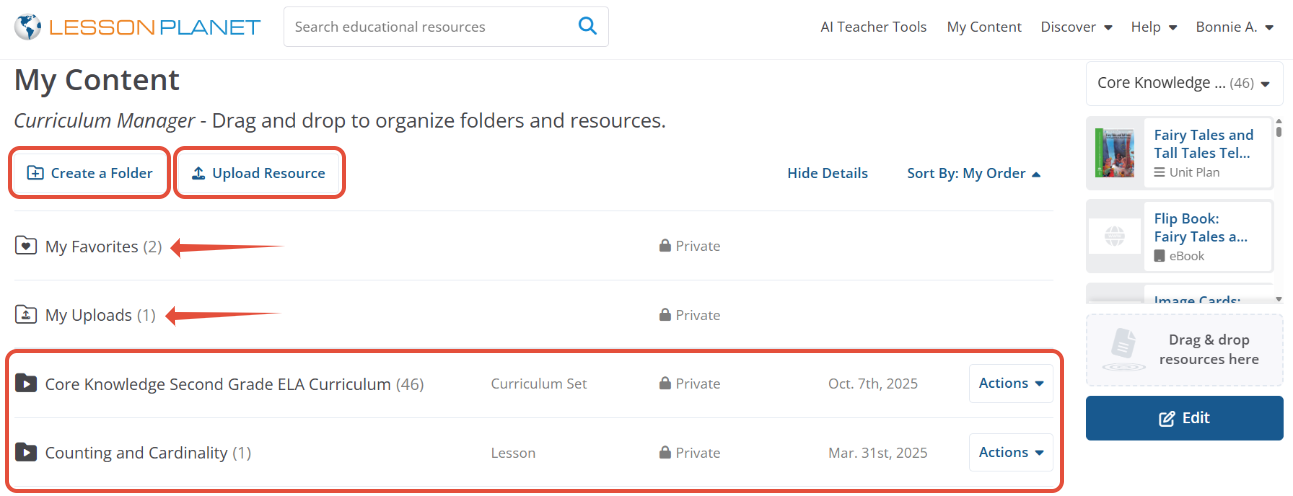
- Create a Folder: Another way you can go about starting a collection.
- Upload Resource: Add a Resource you created or found somewhere else from your computer and add it to your Curriculum Manager.
- My Favorites: Resources that you have saved from your searches by clicking on the Favorite button on the review page
- My Uploads: Your own files/PDFs that you have uploaded from your computer.
- Everything listed below My Uploads are the Collections you have created.
Note: Any resources directly uploaded to a collection can be found under My Uploads as well.
Managing the resources in Your Collections
- Actions Button
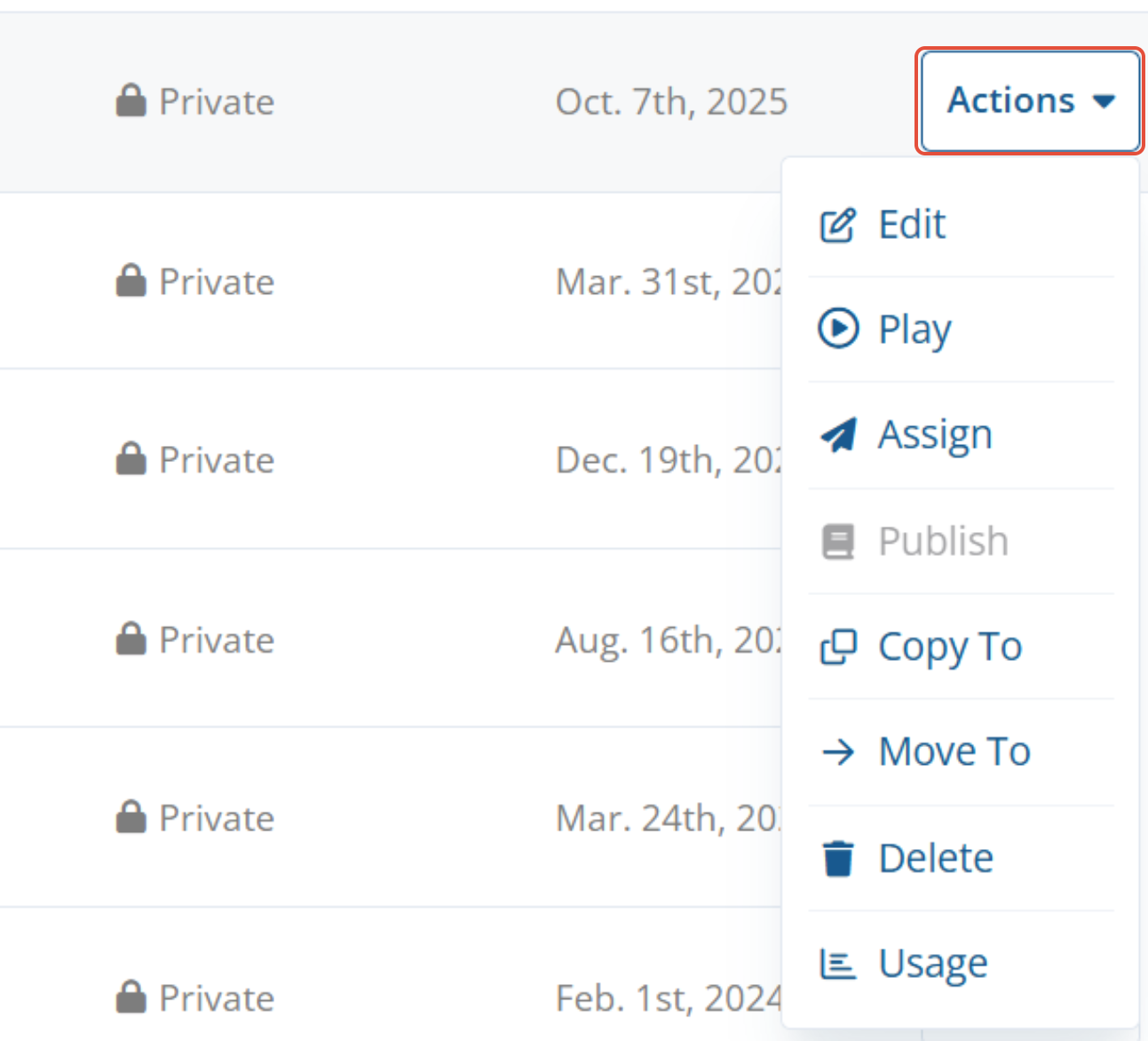
- Edit
- Play
- Assign
- Copy To
- Move To
- Delete
- Expanding and viewing a collection
- Click on the arrow to the left of the title of the collection to expand the collection.
- Click on the View Collection to the right of the collection title to view all the resources in that collection.
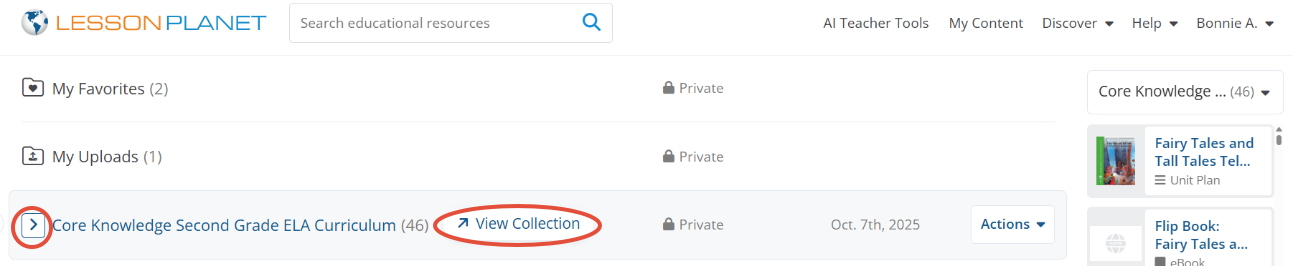
Note: These two views will allow you to link to each individual resource you have added to that collection. When you click on the title of the resource, the resource will open up in a separate tab.
Still need help? Submit a request.