

Assigning a Collection through a Link or Google Classroom
Table of Contents
- Overview
- Ways to Assign a Collection
- Assigning a Collection via Share Link
- Assigning a Collection via Google Classroom
- Collection Tips
Overview
Assign a lesson collection to your students with a password-protected link, directly to a digital session, or through Google Classroom. When you assign a collection, students can interact with the resources in the collection, complete assignments, access learning materials at home, and more in a seamless playlist view.
Ways to Assign a Collection
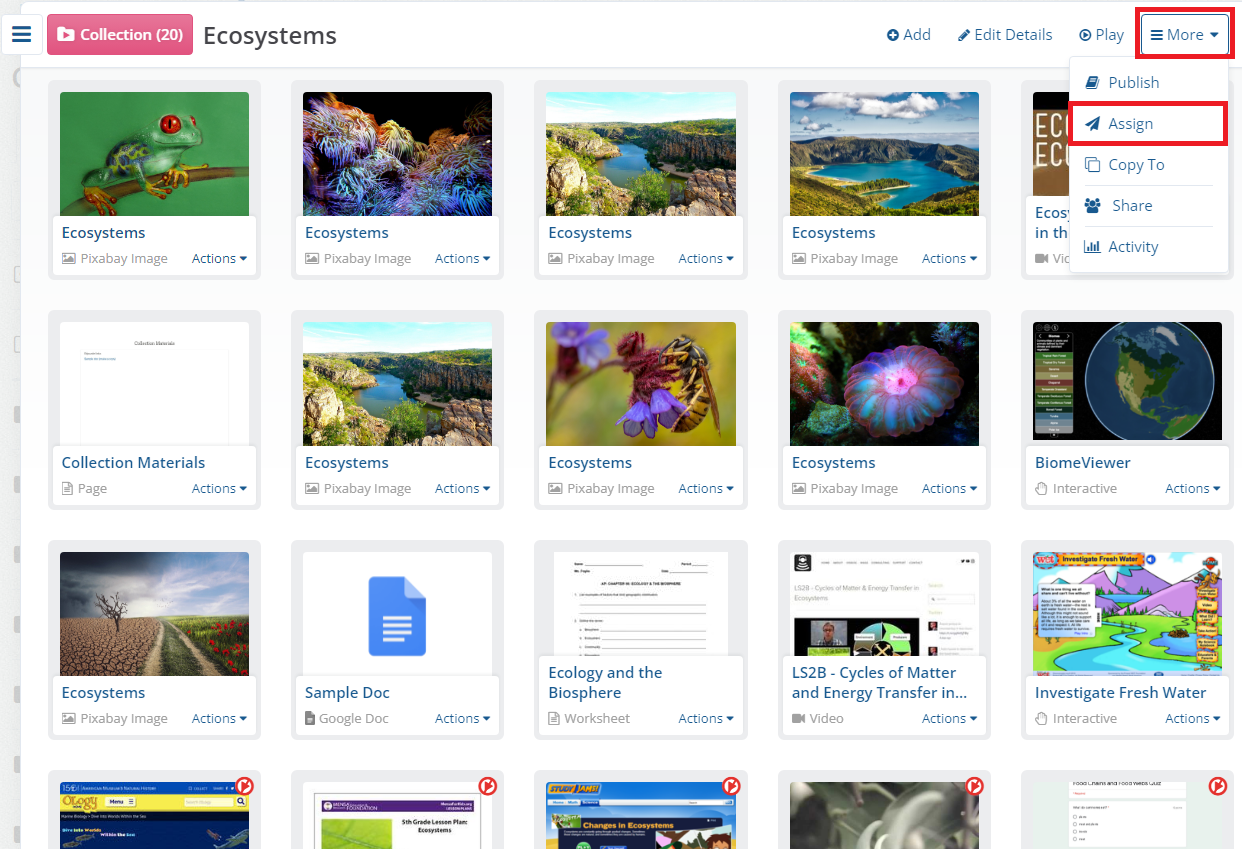
- From the Collection Editor view, you can click on the More option and select Assign.
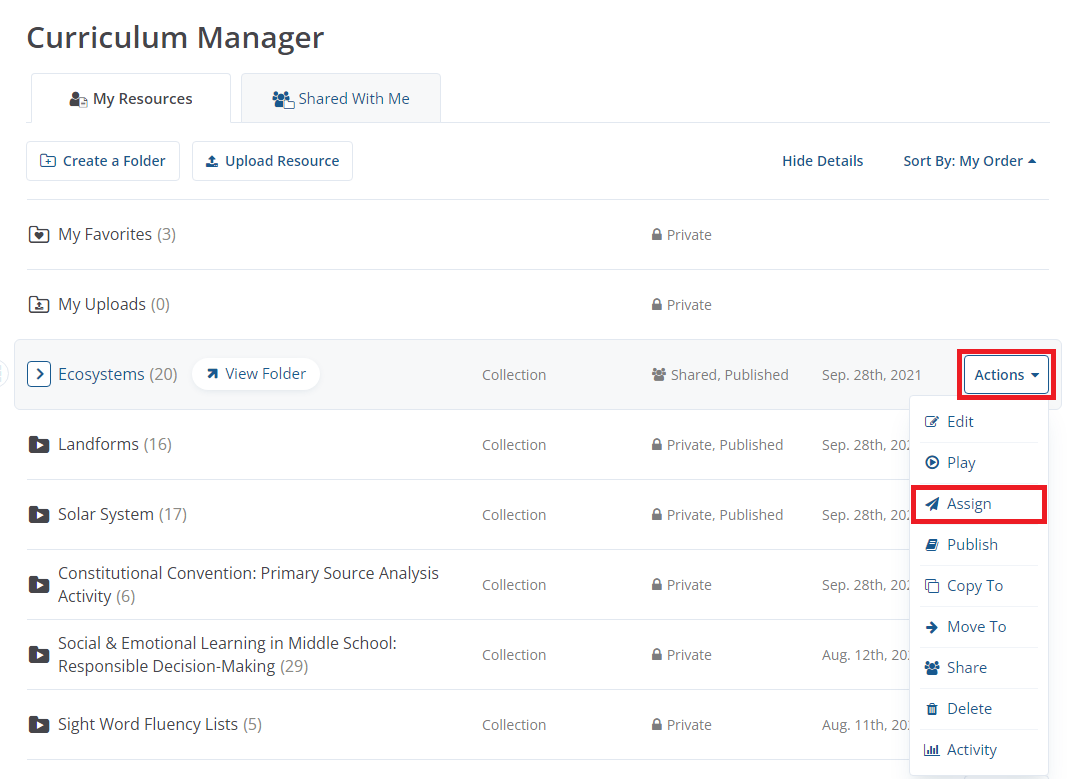
2. From the Curriculum Manager, click on Actions that is located on the same line as the title of the collection and select Assign.
Assigning a Collection via Share Link
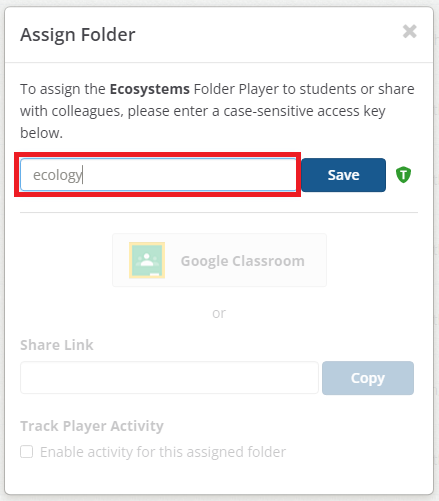
- After you click Assign, you will be prompted to enter a case-sensitive access key (5-character minimum) and click Save.
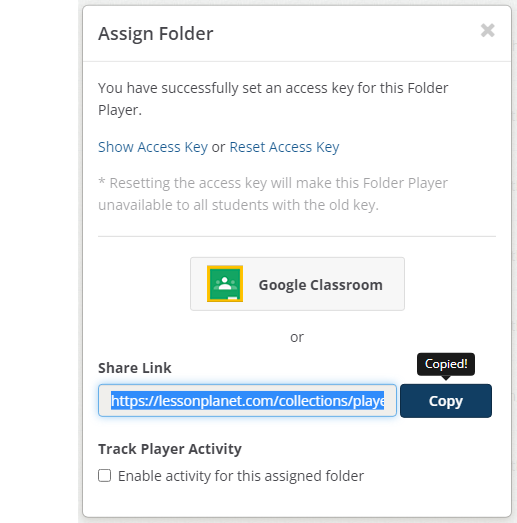
2. Copy the Share Link and send it to your intended viewers, along with the access key you created.
Assigning a Collection via Google Classroom
- Same as step one when assigning through a Share Link. You will need to create an Access key.
- Select Google Classroom and you will be prompted to select from one of the classrooms that you have set up in your Google Classroom account.
- Follow the intuitive steps to add your collection to your Google Classroom as an assignment.
Note: You can reset your collection access key at any time. However, resetting the access key will make the collection unavailable to all students with the old key.
Collection Tips
- Create or copy and assign different versions of a collection to your students to meet individual needs.
- Assign collections to students in small learning groups at different learning stations in class.
- Hide multiple resources from students before assigning a collection; unhide the resources when you are ready for students to view them (example: daily lessons or a quiz)
- You can add more resources and make any kind of edits to your collection at any time without having to reassign it.