

The Player View
Overview
You have just finished creating a collection, now what? You can play your collection to either display it in your classroom or see what it will look like when you assign it to your students.
What Your Students See
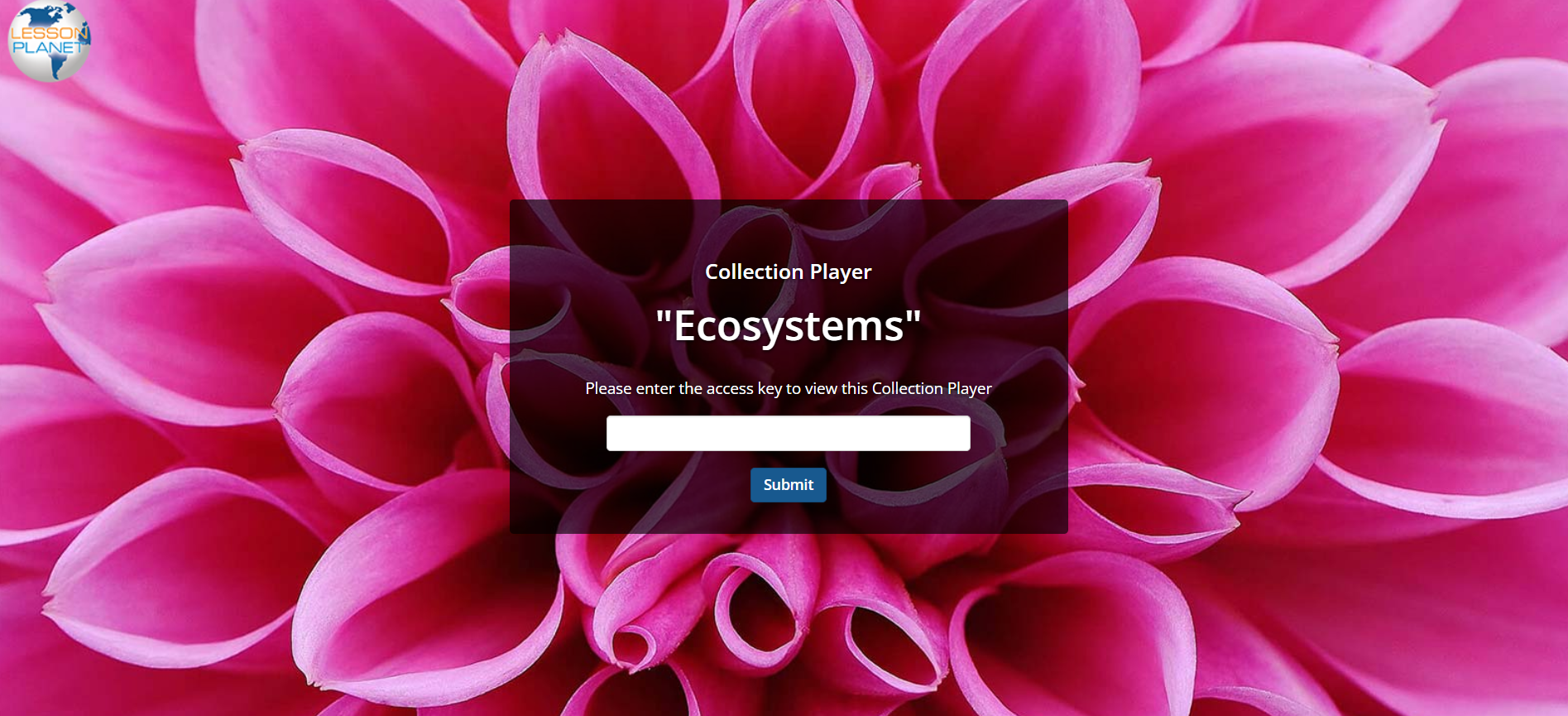
- When a student clicks on the shared link to the collection you assigned to them, they will be prompted to enter in the access key here .
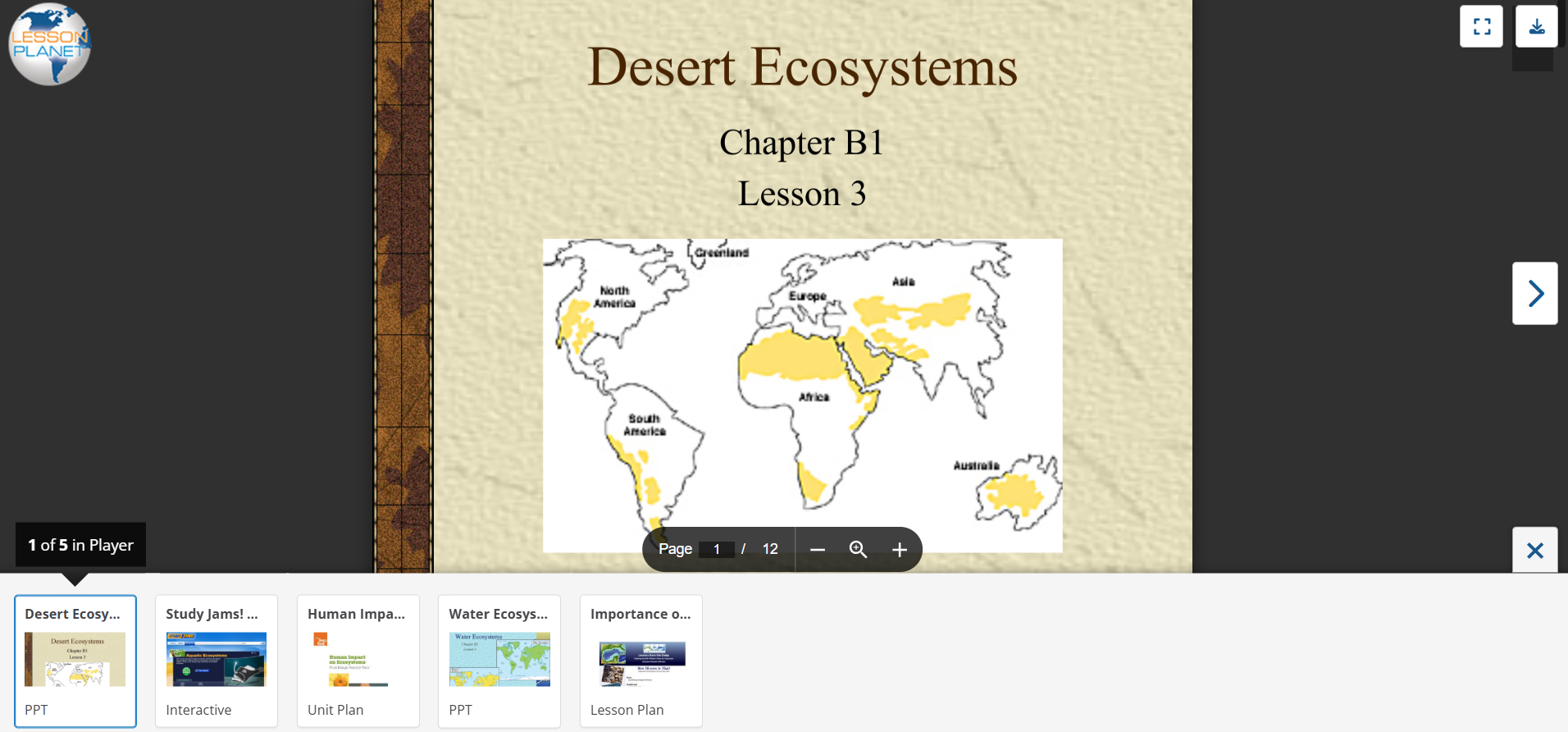
- The player view will then appear for that collection. Now students can navigate and view the collections as intended, such as watch videos, complete assignments, read text, answer questions and more.
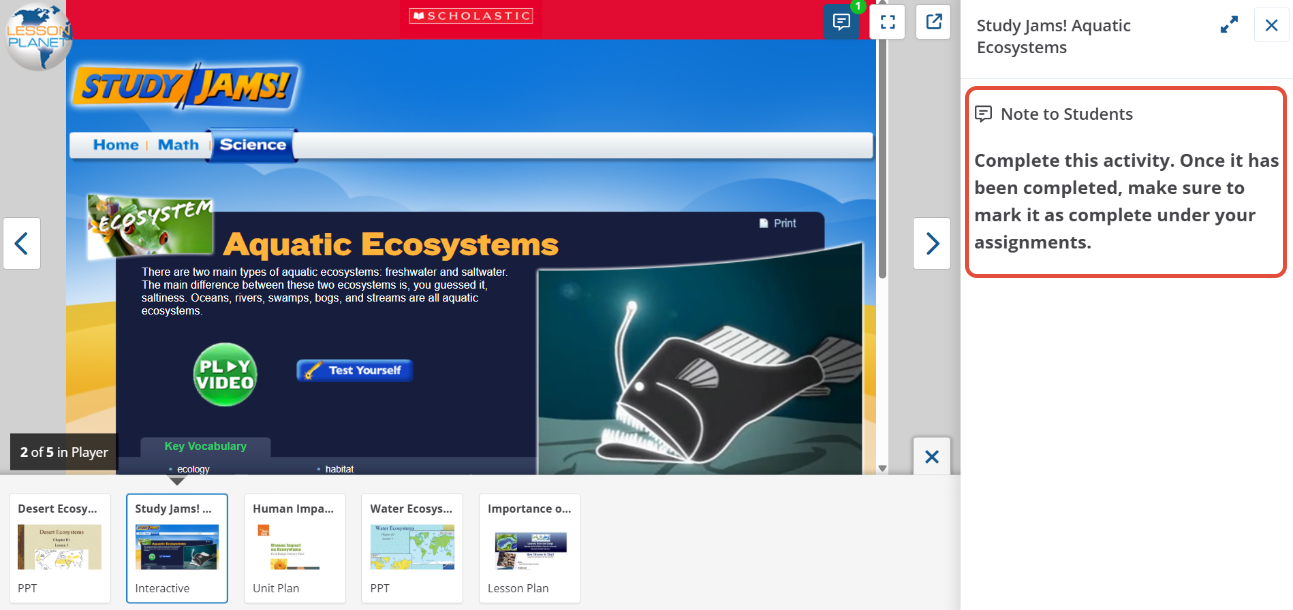
- If you added a note for your students on a specific resource, the note will appear on the right-hand side of that. resource.
Note: To preview what the studnets see, go to My Content and click on the Actions button for that collection, and select Play.
Still need help? Submit a request.