

Creating a Lesson Collection and Adding Resources to a Collection
Overview
Collections allow you create your own personalized online curriculum for a specific topic, concept, or a lesson plan. This article will show you two different ways to create a collection and ways you can add resources to your collection.
Creating a New Collection Using the Collection Builder
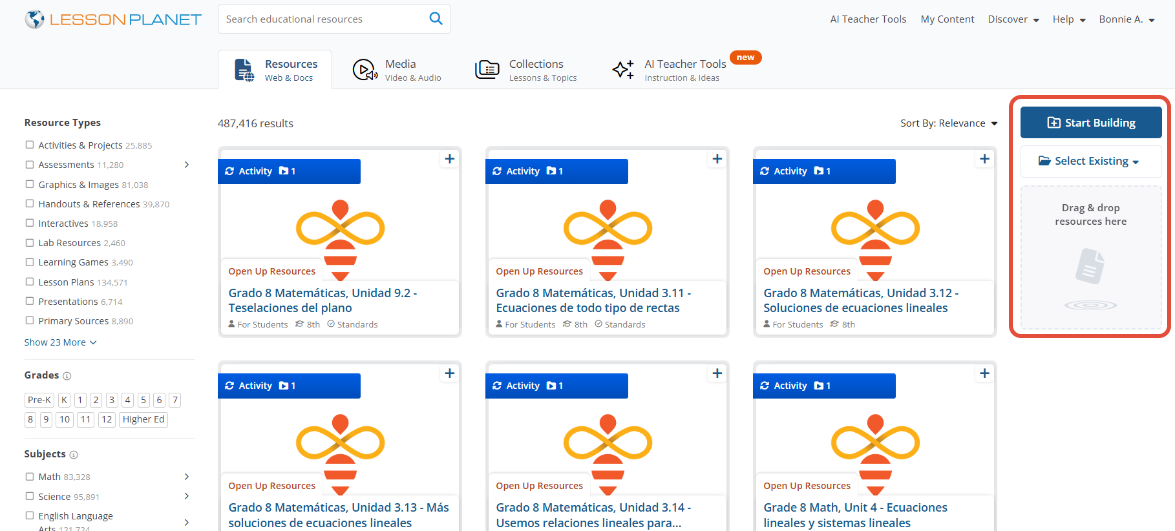
- When you are on the Discover Resources search page, locate on the right-hand click on Start Building or Select Existing button and +Create a New Collection.
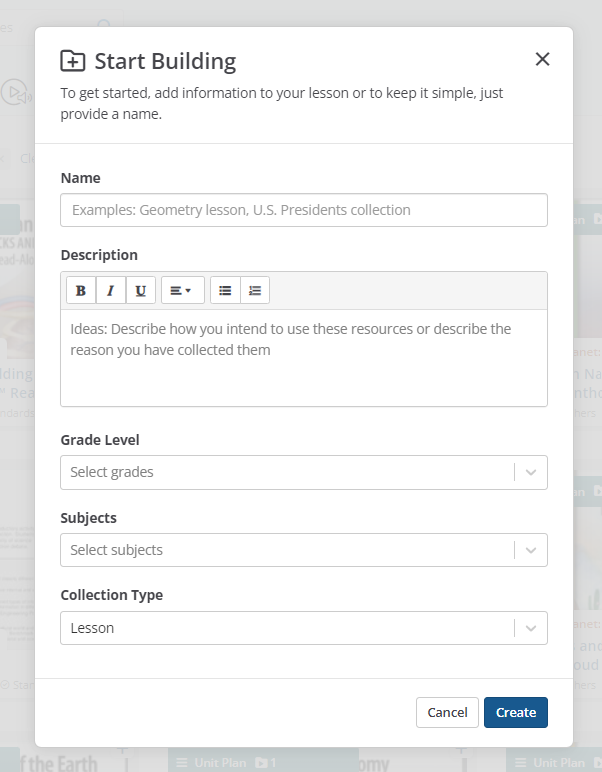
- Fill out some basic information about your collection, including a title, grade(s), subject(s), and a short description(which is not required, but if you do add one and want to change it, you can go back and edit it later).
- Click the Create button at the bottom to launch your new collection in the builder on the right-hand side.
Adding Resources to Your Collection
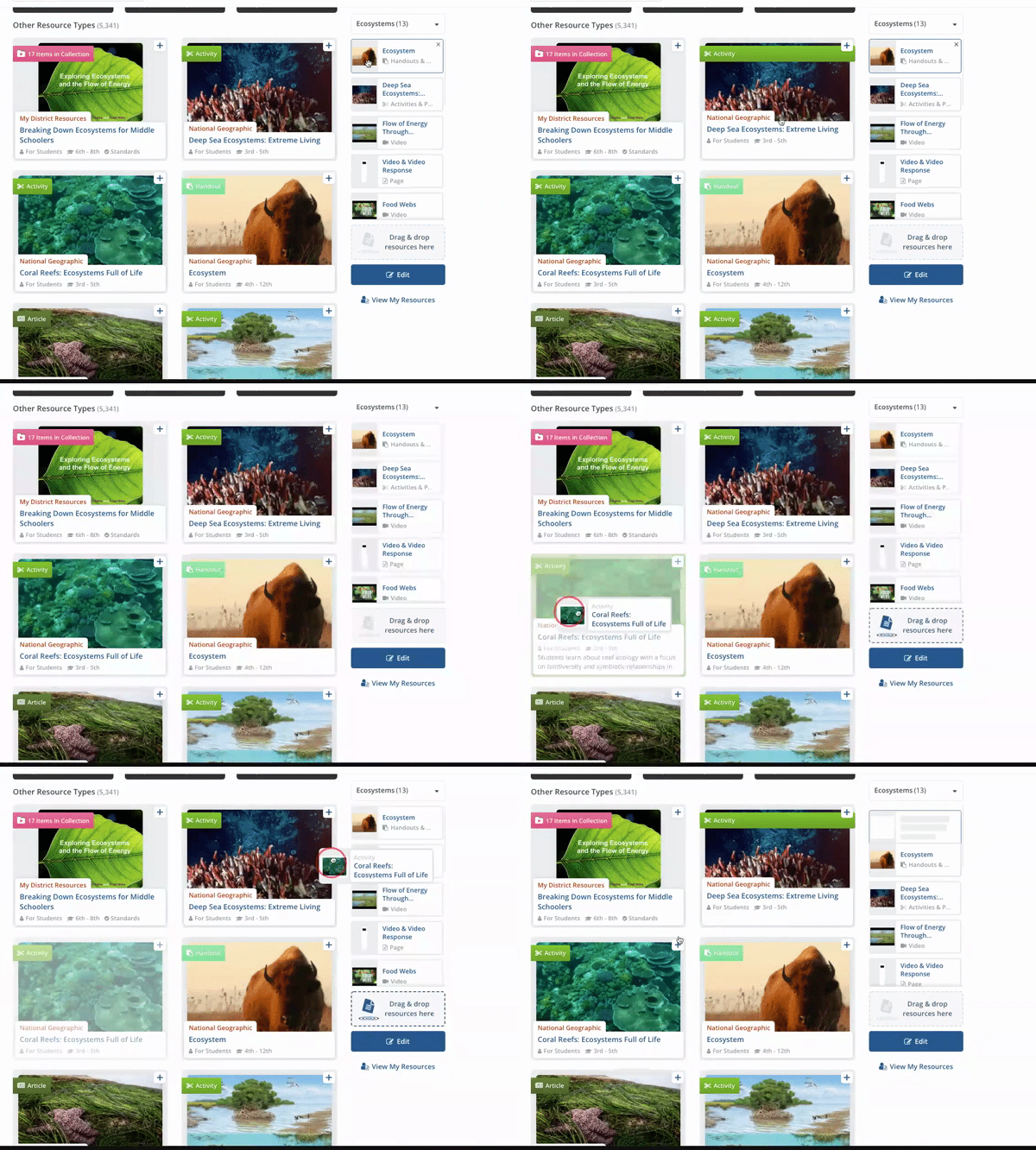
- The first way you can add a resource to your collection is simply to drag and drop. Left click and hold a resource from your search, then drag the resource into the collection that shows up on the right and drop it by releasing the right clicker or you can simply click on that little plus sign in the top right corner of the resource.
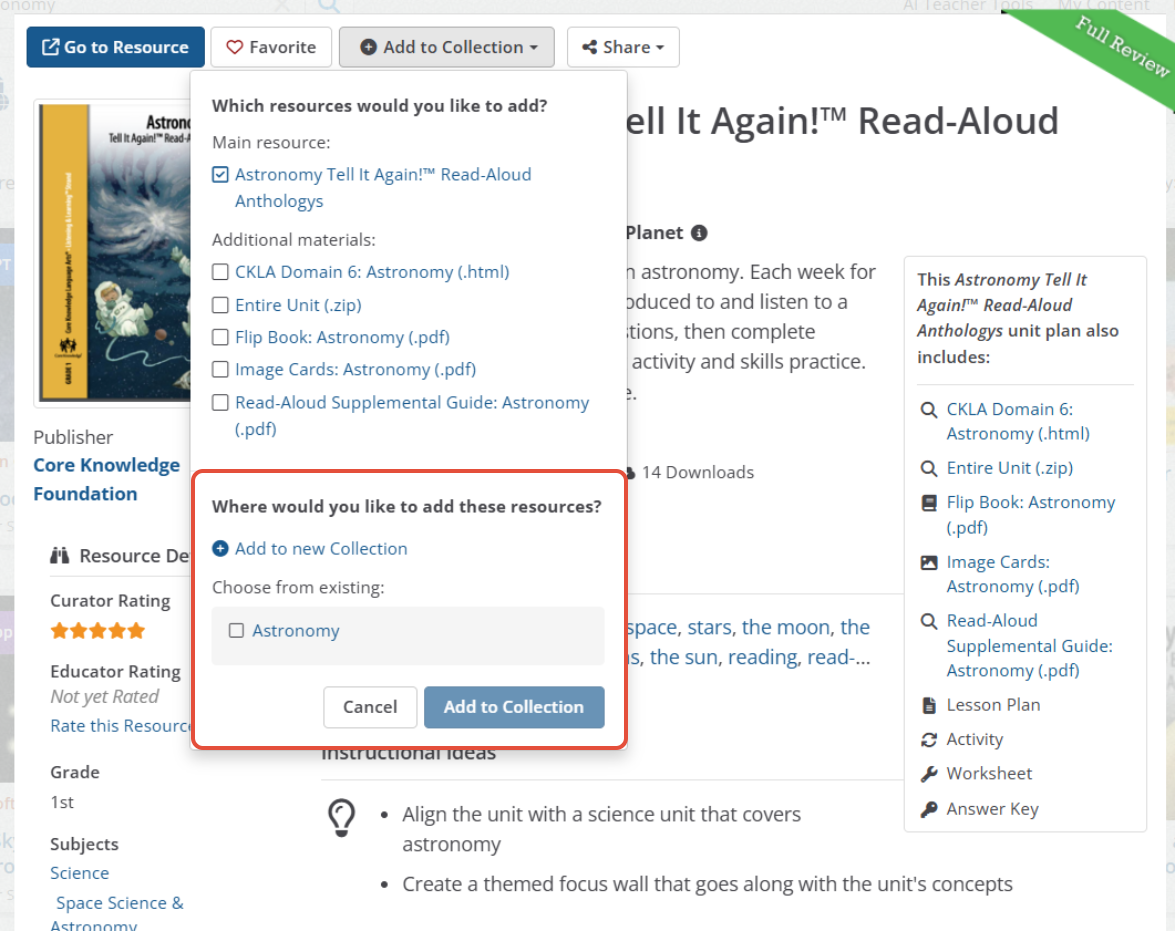
- The second way is to open up the review page of the resource and click on +Add to Collection, and then select the collection you wish to add it to or click on +Add to new Collection.
- If there are links to included materials listed in the resource review, you have the option to add those to your collection as well, as seen here.
Note: A resource can only be added once to a given collection.
Common Questions
- Q: Can I delete or rearrange the resources in my collection?
A: Yes. Simply click the "X" on the resource from your collection and it will remove it. To rearrange, you can left click, hold and then drag it up or down. - Q: Can I save a premade collection from the Collections tab?
A: Yes. When you are on the resource review page of that collection, you can select the Save button and the heart will fill in or add it to one of the collections you built out by clicking on +Add to Collection (you can also add it by using the first method we mentioned).
Still need help? Submit a request.